MFA, the cheapest protection you can turn on
If you only have the energy to do one thing from this whole series, do this one.
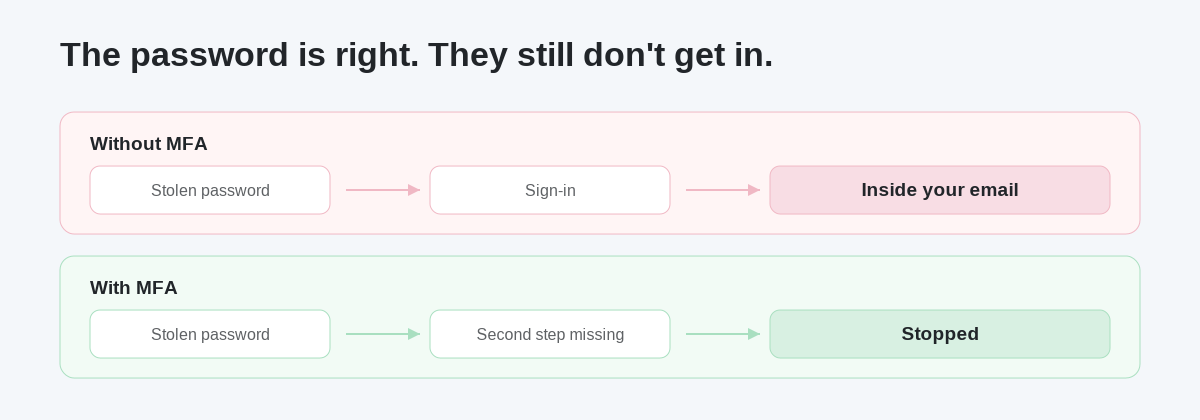
MFA, multi-factor authentication, means the password is not enough to sign in. Something more is required: a code in an app, a notification on the phone, a physical key. If the attacker gets hold of the password they are still standing outside.
Microsoft's own figures have been around MFA stopping over 99 percent of account takeovers. Even with a healthy scepticism towards rounded marketing numbers, the order of magnitude is right, and it matches what we see at clients. No other measure we recommend removes an entire kind of attack like that.
Why it takes so long to turn on
Nobody is against MFA. What people worry about is that it will be a hassle every morning.
In practice it isn't. On a computer you trust and use daily the question rarely comes up, often only every thirty days. It is on new devices and from new locations that it kicks in, which is exactly where it should.
The other objection is that someone will get locked out. That is a reasonable worry, and the solution is simple: register two methods per person from the start, for example the app on the phone and a backup phone number. Then there is a way back without anyone having to call you in a panic.
Choose the right kind of second factor
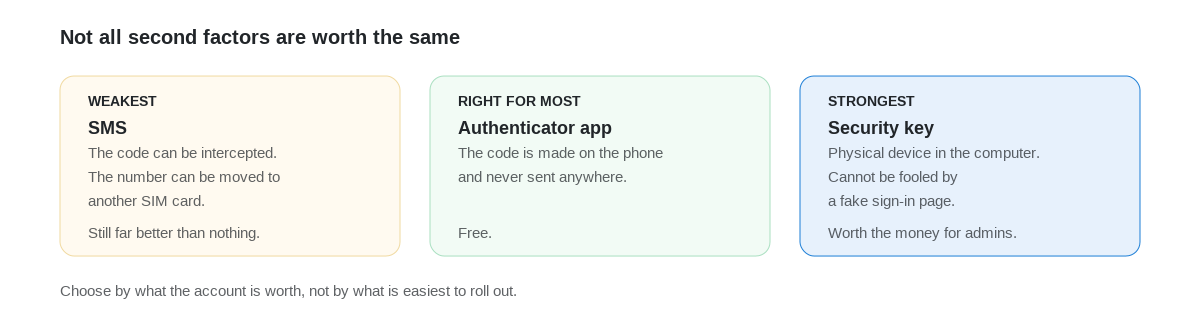
SMS is the weakest, but still much better than nothing. The code can be intercepted, and there are cases where attackers have moved a phone number to a SIM card of their own by calling the carrier.
An authenticator app is the right choice for most people. Microsoft Authenticator or Google Authenticator, free, and the code is created on the phone without being sent anywhere.
A physical security key is the strongest. A small USB device that has to be plugged into the computer. Overkill for most employees, well worth the money for admin accounts, because it is the only variant that cannot be fooled by a fake sign-in page.
What still goes wrong
MFA does not stop everything, and it is good to know where the limit is.
There are phishing pages that ask for both password and one-time code, and pass both on in real time while the user believes they are signing in as usual. The attacker sits in the middle and gets a valid session. That is why it matters that people recognise a suspicious link, and why security keys are stronger, since they check the address for the user.
The MFA fatigue attack is the other variant. If someone gets a stream of sign-in notifications in the middle of the night, someone else has the password and is hoping you will tap approve to get some sleep. The answer is always deny, then change the password right away.
Turn on number matching if your solution has it, meaning you have to type in a number shown on the screen instead of just tapping approve. It removes the fatigue attack almost completely.
Where to turn it on
Email first. Always.
The reason is the same as in the previous part: whoever owns the email can reset the password to almost everything else you have. A protected accounting system is of little help if the attacker can request a new password and read the email.
Then everything else that reaches company data from the outside: Microsoft 365 as a whole, VPN, the accounting system, the bank, the domain registrar and the web host. The last two are almost always forgotten, and they are exactly the ones that do the most damage if they are hijacked, because all your email can be moved from there.
The order that gets it done
Start with yourself and management, not with the staff.
That removes both the objection that someone else should test it first and the risk that the person with the most access is the one protected last. You will also know how it works yourselves when the staff start asking.
Then set a date when it applies to everyone, and say it in advance. Without an end date the rollout never finishes. It ends up as a list of exceptions.
What it costs
Nothing, in most cases. Cost still gets used as a reason to wait.
MFA is included in every Microsoft 365 subscription. The authenticator apps are free. The only thing that costs money is security keys, and you only need those for the administrator accounts.
What it costs is time: roughly ten minutes per person the first time, plus half an hour or so for whoever sets it up. Compare that with a hijacked mailbox, where the work afterwards is measured in days and where you also have to contact everyone who received email from the account in the meantime.
The exceptions that eat up the benefit
Every exception is a way in, and exceptions tend to become permanent.
The most common one is the account used by a system, not a human. They often get MFA turned off so things can run automatically, and then they are given strong permissions on top of that. Give them as few permissions as possible instead, and their own credentials that are not used for anything else.
Go through the list of exceptions twice a year. It usually contains at least one account nobody can explain anymore.
Next part: phishing, what the emails look like when they are aimed at you specifically.
Other parts in this series: