Suspicious link, how to check it without clicking
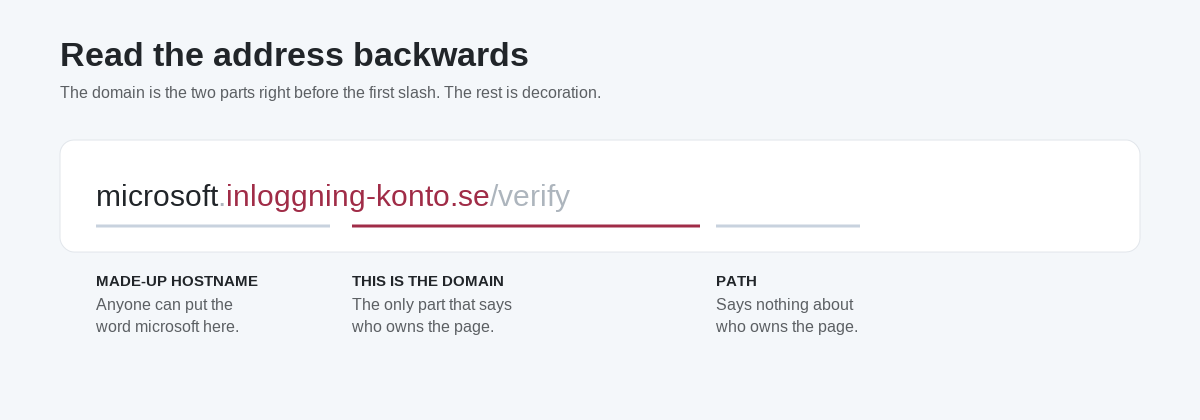
The address bar is full of text that looks like it means something but doesn't. Attackers build their addresses to exploit exactly that.
Read the address backwards
That is the whole trick, and you only need to learn it once.
The domain is the last two parts before the first slash. In microsoft.inloggning-konto.se/verify the domain is inloggning-konto.se, not microsoft. The word microsoft is only a made-up hostname that anyone can put in front of their own domain, just as you can create anything.yourdomain.se yourselves.
So read backwards, find the first slash, and look at the two parts right before it. You can ignore the rest.
The same logic applies to what comes after the slash. An address can end in /microsoft.com/login without having anything to do with Microsoft, because the path is decided by whoever owns the domain.
See the link without opening it
On a computer: hold the mouse pointer over the link without clicking. The address shows up in the bottom left corner.
On a phone: hold your finger on the link for about a second until a menu appears with the address at the top. Don't let go, and then tap cancel.
If the link is a short one, the bit.ly kind, you see nothing. Paste it into virustotal.com instead, which opens it for you and shows where it leads. Be careful about pasting links that contain personal data, because the service stores what you submit.
The same goes for a Word or PDF document, but there it is more common for the text to say one thing and the link another. A document that asks you to click to "view the secure content" is a warning sign in itself.
What to look for
The spelling of the domain. micros0ft.com with a zero, swedbamk.se, foretaget-support.se instead of foretaget.se. They are made to pass a quick glance.
Whether the domain has anything to do with the sender. An email from your bank that leads to an address you have never seen is not to be trusted, however well made the page is.
Whether you were expecting the link at all. That is the best question of them all, and the one that takes the least technical knowledge.
The traps made to fool the eye
Three variants keep coming back, and all of them exploit that we read patterns instead of characters.
A hyphen instead of a dot. microsoft-login.se looks almost like login.microsoft.se, but the first one is an entirely separate domain that someone bought.
Letters that look alike. A capital i and a lowercase L are nearly identical in many typefaces, and rn side by side looks like an m. paypaI.com and rnicrosoft.com exist for real.
Letters from other alphabets. A Cyrillic a looks exactly like a Latin one. Modern browsers show such addresses as a long code starting with xn--, and if you see that in the address bar on what claims to be a well-known site, close the tab.
The padlock means nothing
This piece of advice has hung around since the early 2000s and it does damage.
The padlock shows that the traffic is encrypted, meaning nobody can eavesdrop along the way. It says nothing about who owns the page. Almost every phishing page has a padlock today, because certificates are free and take a minute to get.
An encrypted fake sign-in page is still a fake sign-in page. Encryption protects the transport, not the recipient.
If you have already clicked
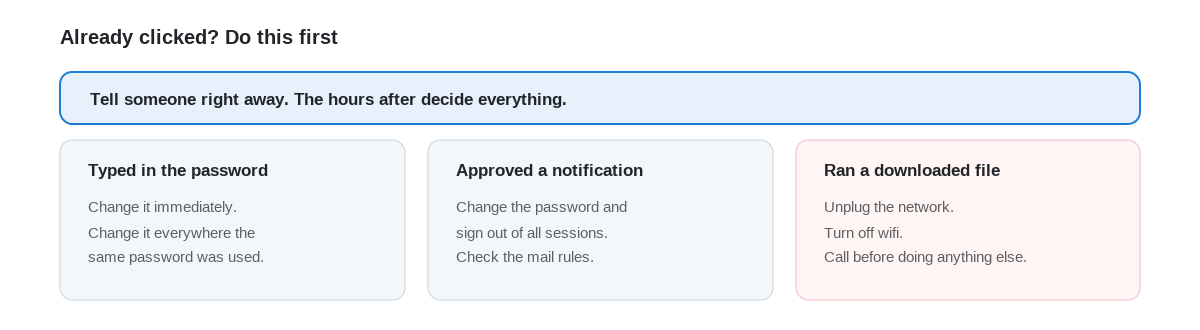
The most important thing first: tell someone right away. The hours after decide everything, and they are lost if someone sits there feeling ashamed.
If you typed in your password, change it immediately, and change it everywhere you have used the same password. With a password manager that goes fast. Without one you have to go through the services one at a time.
If you approved a sign-in notification you did not start yourself, change the password and sign out of all sessions. Then check whether a rule has been added in the mailbox that forwards mail, because that is the first thing an attacker sets up.
If you downloaded a file that asked to be run, unplug the network cable or turn off wifi and call before you do anything else. Do not shut down the computer, that erases traces needed to understand what happened.
Just having opened a page is rarely dangerous
Loading a web page is normally harmless as long as you did not type anything in and did not download and run anything. The dangerous step is almost always one of those two.
The exception is a really old browser that has not been updated. That is one of several reasons to let updates install automatically instead of postponing them for months.
Make it a habit
Nobody remembers a walkthrough for three months. What sticks is having done it yourself.
Take five minutes at the next meeting and let everyone hold the mouse pointer over a link in a real email, just to see where the address shows up on the screen. Most people have never done it, and once they have seen it they do it again.
Also decide where people turn. A named person, or an address to forward whatever you are unsure about. If you don't know who to ask, you click and hope.
The rule that holds
A rush is always a warning sign.
The attacks depend on someone feeling stressed, and no serious counterpart loses anything when you call and check first. The bank, the Swedish Tax Agency and your vendor all have time to wait ten minutes.
Next part: old user accounts, the doors left open long after someone has left.
Other parts in this series:
- 3-2-1 backup
- Password managers
- MFA
- Phishing
- Suspicious link (this article)
- Old user accounts
- When an employee leaves
- Admin accounts