"Anyone with the link", what does it actually mean?
"Anyone with the link" means exactly what it says, and that is the problem.
The link requires no sign-in. It does not care who you are. It works for anyone who happens to have it, whether that person works for you, for a customer, or has nothing to do with the matter at all. It works in a private browser window, from a phone in another country, at three in the morning.
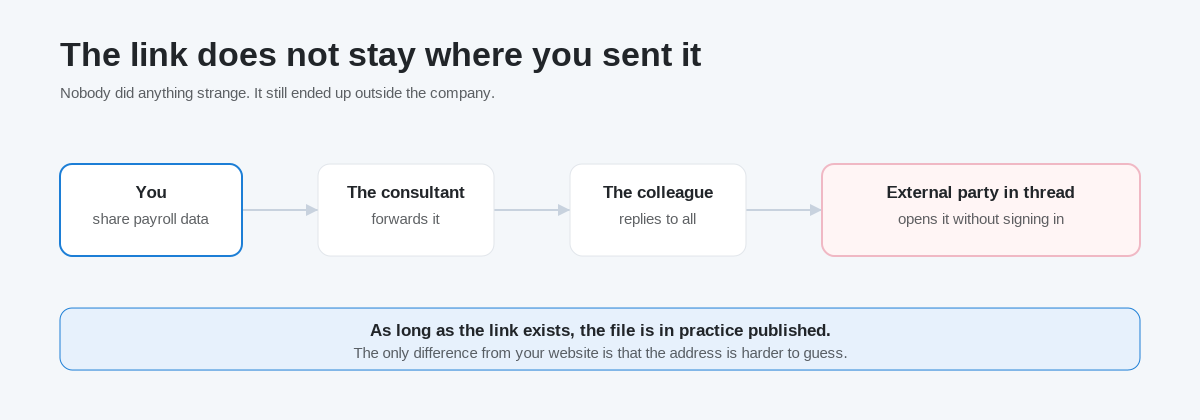
As long as the link exists, the file is in practice published. The only difference from putting it on your website is that the address is harder to guess.
Why it still gets used all the time
Because it always works.
If you share with specific people, the recipient has to sign in, and sometimes that causes trouble. They have the wrong account active, they work at a customer without a Microsoft account, or the one-time code lands in the junk folder. Then they get in touch to say the link does not work, and whoever shared it has to spend time sorting it out.
Choose "Anyone with the link" and nobody gets in touch.
That is why it spreads. It is the only option that never produces an email in return. The person sharing avoids the hassle right away, and the bill arrives much later, often with someone else.
The difference in practice
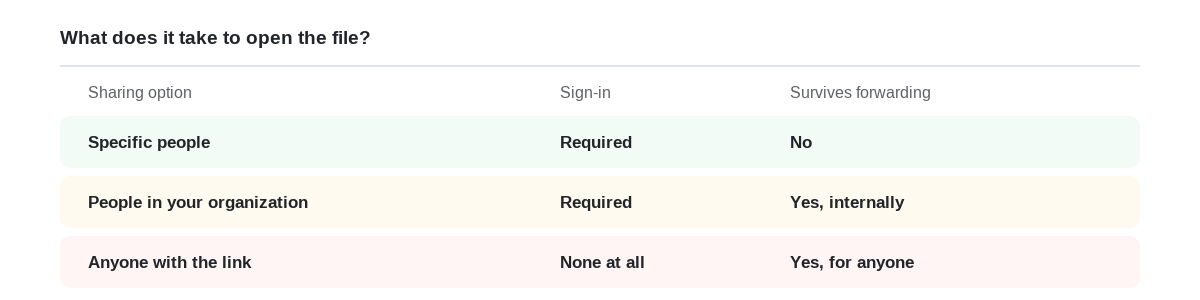
The forwarding column is the one that decides it. A link that stops working when it is passed on stays with the people you chose. One that keeps working can end up anywhere.
How it goes wrong
Links get forwarded. A customer shared payroll data with "Anyone with the link" to their accountant, who forwarded the email to a colleague, who replied to all in a thread that included an external party. Nobody did anything strange. Still, four people outside the company had access to the salaries of every employee, and none of them even had to sign in.
Links also end up in chats, in meeting notes and in documents that are shared on in turn. And they do not stop working because someone leaves the company. It is the same problem as with old user accounts: something keeps working long after the reason for it is gone.
What makes it hard to spot is that nothing breaks. A leaked link looks exactly like a working one, right up until someone happens to mention that they have seen something they should not have.
Search engines and other misunderstandings
Two questions always come up when we go through this.
"Can Google find the file?" Not on its own. The links are long and random, and they are not linked from anywhere a search engine can follow. But if the link ends up in a public forum, on a public Trello board or in a document that is later published, it can be indexed. Nobody guesses the address. The risk is that it leaks.
"Can we at least see who has opened it?" No, not in any useful way. Since nobody signs in, there is no name to record. You can see that the file has been opened, not by whom. That is exactly the information you would need the day something has gone wrong.
When it is reasonable to use
Sometimes it is the right choice.
A public price list. A brochure. A user manual. A form that anyone should be able to fill in. Things that are meant to be spread.
The rule is easy to remember: if you would not want the content open on your website, it should not be shared with "Anyone with the link".
Two ways to reduce the risk
If you have to use it anyway, make it less dangerous.
Set an expiry date. A link that stops working in two weeks can only leak for two weeks.
Set a password on the link. No sign-in is required then, but the recipient needs a password that you send separately, preferably by some other route than the link. It is almost as easy for the recipient, but the link is no longer enough on its own.
Both are in the same sharing box, where you choose who the link works for.
Do this now
Open OneDrive on the web, click Shared in the left menu and look through the list.
Most people are surprised by how much is in there, and how old some of it is. Remove what is no longer needed. You do not have to ask anyone's permission, and nobody is notified when you do it.
It takes ten minutes and is time well spent. If you want to go further from there, How to see who has access to a file is the next step.
What you should set as the default
Whoever administers your Microsoft 365 decides what the sharing box suggests from the start, and that setting does more good than a training course.
Set the default to Specific people. Then the narrowest option sits at the top, and anyone who really needs an open link has to actively choose it. It does not change what is possible, only what happens when someone is in a hurry.
In our experience most accidental open shares disappear from that alone. Almost none of them were a deliberate choice in the first place.
Next part: how to get back a file that someone has deleted.
Other parts in this series:
- Where should I save the file?
- How to share a file safely
- "Anyone with the link", what does it mean? (this article)
- How to restore a deleted file
- How to restore an old version
- How to see who has access to a file