How to restore an old version
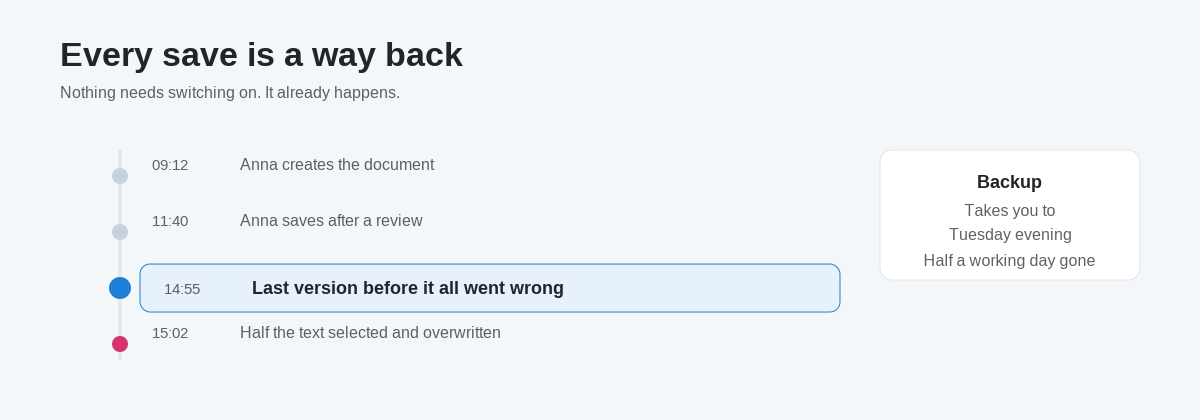
This is not the same problem as a deleted file. The file is where it should be. It is the content that is wrong.
Someone has cleared out a paragraph that was needed. A formula in the spreadsheet has stopped calculating. Someone has pasted in text from the wrong source. Most common of all: someone selected everything, pressed a key, and saved without noticing.
Version history is already there
You do not have to turn anything on. OneDrive and SharePoint automatically save versions of every file, and do so every time someone saves. A document two people work in over a morning can end up with thirty versions.
Right-click the file in OneDrive or SharePoint on the web and choose Version history. You get a list with date, time and who saved.
Click a version to open it without changing anything. If it looks right, choose Restore. The old version becomes the current one, and the faulty version stays in the history as a version of its own. Nothing is lost, whatever you choose, and you can undo the undo.
What makes it better than a backup
A backup is taken once a day. Version history saves every time someone hits save, and the difference is bigger than it sounds.
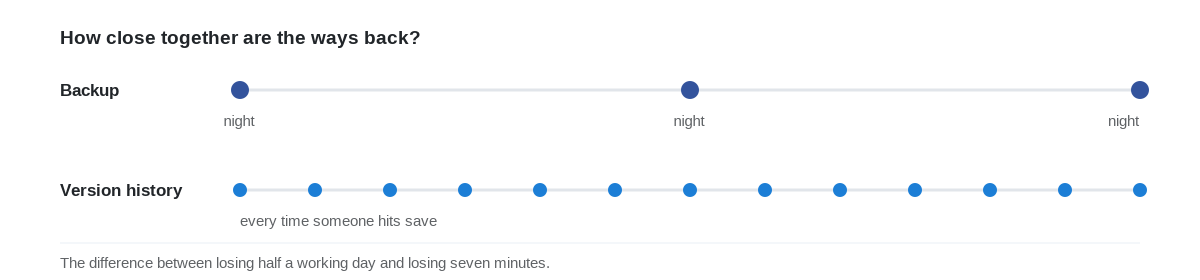
If you write on a quote all Wednesday and happen to ruin it around three o'clock, a nightly backup takes you back to Tuesday evening. Version history takes you back to 14:55. The difference is half a working day, and that is usually where most of the thinking went.
That does not mean backup is unnecessary. The two protect against different things, which we go through in 3-2-1 backup.
Straight from the Office apps
You do not have to go to the browser. In Word, Excel and PowerPoint, click the file name at the top of the window and choose Version history. The same list appears in the side panel, and you can browse between versions while the document is open.
That is where most people find the feature by accident, usually while looking for something else.
Clicking the file name also shows you where the file is stored. It is a quick way to answer the question from the first part of the series without hunting through folders.
Compare instead of guessing
You rarely need to remember exactly what changed. Word has a built-in comparison under Review > Compare, where you can put two versions side by side and get the differences marked.
It is especially useful when the error is not obvious. A removed paragraph shows right away, but a changed figure in a table or a formula pointing at the wrong cell is not something you find by skimming the document.
For Excel it is more awkward, because the comparison is not available in every version. There it is often quicker to open the old version in a window of its own and look at the cells you suspect.
When several people work at the same time
Co-authoring makes version history a little different, and that confuses some people.
If three people are in the same document at the same time, every keystroke is not saved as its own version. Office bundles the changes together and creates a version at regular intervals, often when someone stops typing for a while. That is why the history can show fewer entries than you expected on a day when everyone worked hard.
The name on the version is whoever saved, which is not always whoever made the change you are looking for. If you are after who wrote what, Track Changes in Word is a better tool than version history.
A common misunderstanding
Version history follows the file, not the location.
If someone downloads the file, changes it locally and uploads it as a new file with a new name, the history starts again from zero. The same thing happens if someone sends the document as an attachment and the recipient saves a copy of their own.
That is one more reason to work in the shared file instead of sending copies back and forth, just as in part two on sharing safely.
How far back it reaches
The default in SharePoint and OneDrive is 500 versions per file. That sounds like a lot, and for most documents it leaves plenty of margin.
For a file that is changed automatically, for example by a system that writes to it several times an hour, the limit can be reached sooner than you think. Once it is reached, the oldest version disappears for every new one created.
The number can be changed by whoever administers your Microsoft 365. If you need to go further back than the history reaches, the backup is what counts, not the versions.
What you cannot restore
Version history covers the content of the file. It does not cover everything else.
If someone renames the file, moves it or changes who has access to it, that is not a version. It is a change at folder level, and it shows up in the activity log instead. Shares that have been removed do not come back because you restore an old version.
The same goes for a file that has been deleted entirely. Then the recycle bin is what counts, as described in the previous part, and once the file has been restored the whole history comes back with it.
If you only try one thing
Open a document you have worked in for a week or so and look at its version history.
You do not have to restore anything. Just look at how many versions already exist, so you know the option is there the next time something goes wrong. Almost everyone is surprised.
Next part: how to find out who actually has access to a file, which is rarely who you think.
Other parts in this series:
- Where should I save the file?
- How to share a file safely
- "Anyone with the link", what does it mean?
- How to restore a deleted file
- How to restore an old version (this article)
- How to see who has access to a file