Where should I save the file, OneDrive, Teams or SharePoint?
This is the question I get most often from new customers, and almost always too late. Someone has already saved the quote on their desktop, someone else has emailed it to themselves, and a third person has dropped it in a Teams chat. Then that person leaves and nobody can find the file.
The answer is simpler than most people think, because in practice all three are the same thing.
They are the same storage with different doors in
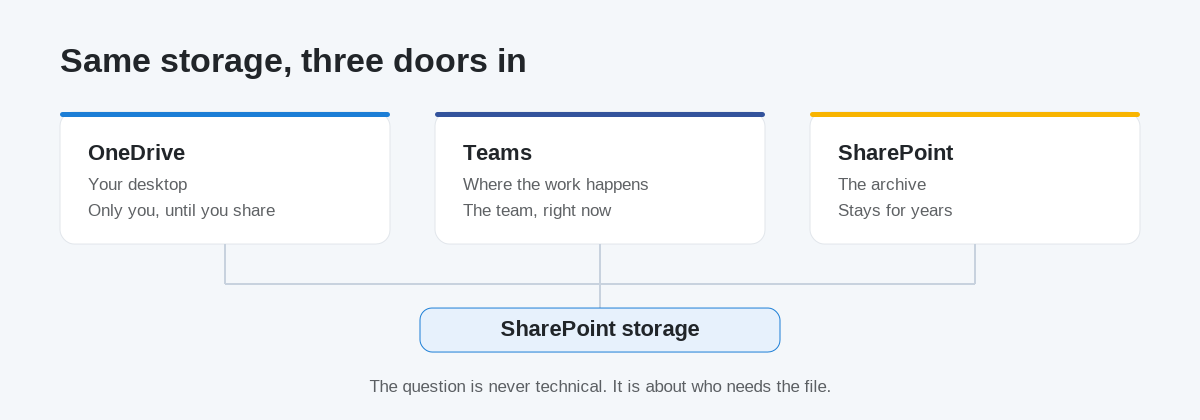
OneDrive, Teams and SharePoint use the same underlying storage. A team in Teams always has a SharePoint site behind it. The "Files" tab in a Teams channel is nothing more than a folder on that site, and if you open it in the browser and click "Open in SharePoint" you land in exactly the same folder with a different interface around it.
OneDrive is your own SharePoint space, where only you hold the key from the start.
That means the question is never about technology.
- The performance is the same.
- The versioning is the same.
-
The search is the same.
The only thing that differs is who can get to the file and what happens to it over time.
That insight is worth thinking about, because that one question answers most of the questions that come up during planning. Nobody has to argue any more that Teams is "faster" or that SharePoint is "too advanced". They are the same storage.
The rule we give all our customers
OneDrive is your desktop, your documents and your pictures. Drafts, notes, things you are working on. The material you are putting together but have not finished. If the file vanished tonight and nobody else would notice, it belongs here.
Teams is where the work happens. Files a team is working on together, right now. The quote three people are writing, the project plan discussed at the Monday meeting, the checklist before a delivery. The telltale sign is an ongoing discussion around the file.
SharePoint is the archive and the shared stuff. The staff handbook, templates, contracts, insurance policies, everything that has to stay put and be found two years from now by someone who was not around when it was created. Here it matters more that the structure makes sense than that it is convenient for whoever creates the file today.
The test that settles it in practice
The line between the three is rarely obvious in the moment. So we usually give customers a single question to ask themselves, and it works surprisingly well.
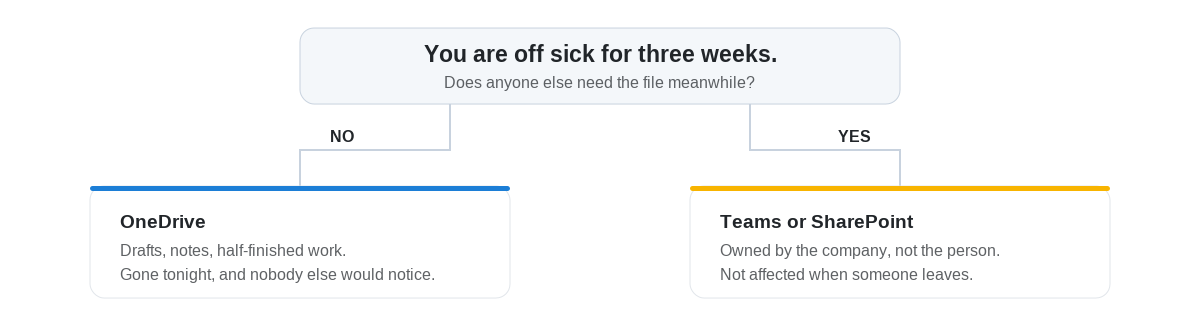
The question is good because it moves the focus from technology to consequence. Nobody needs to know what a SharePoint site is to answer whether a colleague would need the file next week.
It also catches the most common mistake. People save to OneDrive because it is the fewest clicks, not because the file belongs there. The question makes that convenience visible.
Why it matters when someone leaves
This is the part that tends to make people actually change their behaviour, because the consequence is concrete and it is final.
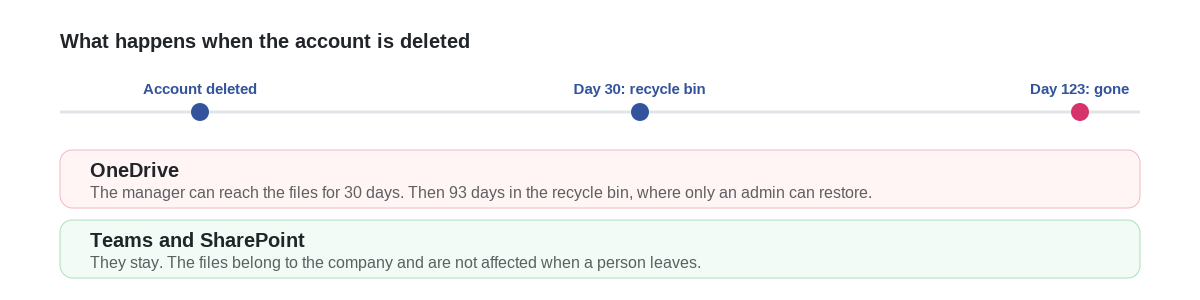
When an employee leaves the company and the account is deleted, their OneDrive is kept for 30 days by default. During that time their manager can get to the files. After that the OneDrive goes to the recycle bin for another 93 days, and from there only an administrator can restore it. The time can be extended, but only if someone knows about the setting and changes it in advance.
If you only remove the licence and leave the account in place, other rules apply: after 60 days the OneDrive becomes read-only and after 93 days it is archived. The archive can only be reached at an extra cost, and without a retention policy the content is deleted.
We have seen a customer almost lose four years of customer records in exactly that way. The salesperson had saved everything in their own OneDrive, the account was deleted as routine when the licence was to be freed up, and nobody gave it a thought until two months later when someone wanted to follow up on an old deal. The files could be rescued from the recycle bin in SharePoint, but only because there were still a few weeks left before they were deleted for good.
Files in Teams and SharePoint are owned by the company, not by the person. They are not affected at all when someone leaves. That is the whole difference, and it costs nothing to use.
The routine for what actually has to be done the day someone leaves is covered in When an employee leaves, but that routine only becomes simple if the files are in the right place from the start.
Two objections we always get
"But saving locally is faster." True, and that is why the rule has to be simple enough to remember. A rule that takes ten seconds of thought gets followed. One that requires you to understand the permission model does not.
"We have backup." Backup protects against something breaking. It rarely protects against a file sitting somewhere nobody looks. We come back to what backup actually does in 3-2-1 backup, but the short answer is that a backup of the wrong place helps nobody.
What you can do today
Decide how you want it and write it down, half a page is enough. Bring it up at a meeting so that everyone has heard it. Adapt the rule to your business, there is more than one way to handle this, but everyone in the company has to know where files are saved and what happens when someone leaves.
Then go through your most important documents, the ten that would really hurt to lose, and check where they actually are. Experience says at least one of them is in the wrong place, and that it is usually one of the five most important.
Last, look at who can actually get to those ten files. That is an exercise of its own that we walk through in How to see who has access to a file, and it usually delivers at least one unpleasant surprise.
Next part: how to share a file without losing control over who can open it.
Other parts in this series:
- Where should I save the file? (this article)
- How to share a file safely
- "Anyone with the link", what does it mean?
- How to restore a deleted file
- How to restore an old version
- How to see who has access to a file