How to see who has access to a file
Permissions in Microsoft 365 pile up over time, and almost never through one single person. Someone shared a folder two years ago. Someone else added a consultant to a team. A third person moved a file between folders and brought the sharing along with it.
In the end nobody knows who can open what. You can find out, and it takes a minute.
Check a single file
Right-click the file in OneDrive or SharePoint on the web and choose Manage access.
You get three things: which links exist to the file, which people have direct access, and what they can do. Next to each row there is a cross. Click it and the access disappears at once, without anyone being notified and without you having to ask anyone's permission.
Look in particular at the row that says "Anyone with the link". If it is there, the file is open to anyone who has the address, for the reasons we went through in part three.
Read the list correctly
Access comes from three directions, and they look almost the same in the interface.
Direct access is people who have been added to this particular file or folder. The easiest to understand and the easiest to remove.
Inherited access comes from a folder further up, or from the team that owns the site. If you remove it here it often comes back, because the source is still there higher up. If you want a real change you have to go to the folder.
Links are objects of their own. A link can give access to someone who never appears in the list of people. That is why looking at the list of people is not enough.
What surprises people
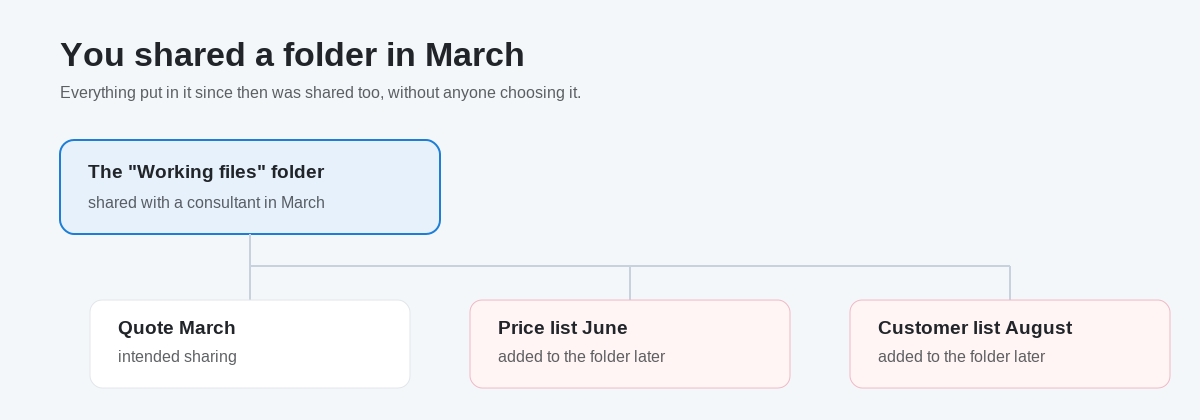
Permissions are inherited downwards. If you share a folder you have shared everything in it, and everything that is put in it in the future. That is rarely how people picture it when they share a folder called "Working files" with a consultant in March.
Files also take their sharing with them when they are moved.
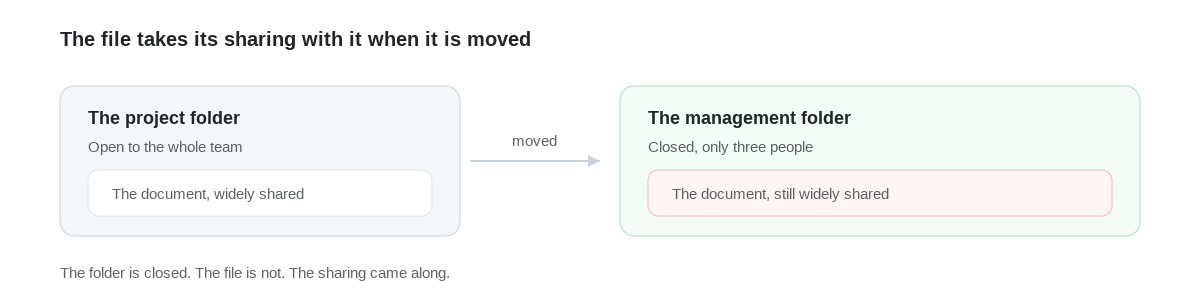
This is the most common way something sensitive ends up in the wrong hands without anyone having done anything obviously stupid. The file was moved to the right place, and everyone assumed the right place also meant the right permissions.
Look at it from above instead
Going through file by file does not work if you have thousands.
Open the SharePoint site instead, click the gear icon and choose Site permissions. There you see which groups exist and who is in them. Most small companies have fewer groups than they think, and a review takes fifteen minutes.
Under Access requests you can also see whether there are shares waiting for approval, and whether external guests have been invited. That is often where the oldest surprises turn up.
External guests are a category of their own
When you share with someone outside the company, a guest account is often created in your directory. That is practical, because the person can then sign in as themselves, and you can see who has opened what.
The downside is that the guest account stays long after the assignment has ended. The consultant who helped with the 2023 year-end accounts is still there as a guest, and the guest still has the shares it was given back then.
You find the list of guests in the Microsoft 365 admin center under Users, as Guest users. It is almost always longer than anyone expected, and it is quick to clean up.
A routine worth the fifteen minutes
Go through your most sensitive areas twice a year. Salaries, contracts, customer data, anything that would be unpleasant to see in someone else's hands.
Look for two things in particular. External email addresses, meaning addresses that do not end in your own domain, and people who have left. The latter is more common than you would think, and it ties in with old user accounts, where the same problem exists at account level instead of file level.
Put the review in the calendar with a named person responsible. A routine that depends on someone happening to think of it never gets done.
Before you remove anything
Better to remove too much than too little, but check three things first.
First check whether the access is inherited, otherwise it comes back and you think the system is acting up. Then remove links before people, because one forgotten open link makes the list of people meaningless.
And keep your own access. It sounds obvious, but it is perfectly possible to click yourself out of a file you own, and then you need an administrator to get back in.
What you can actually see afterwards
The question that usually comes last is whether you can see who has opened a file, not only who can.
For files in SharePoint and OneDrive there is an activity view on the right-hand side that shows views and edits with names. It is enough for everyday questions, for example whether the customer has had time to look at the quote.
If you need to go further back there is the audit log in Microsoft 365, but it requires the right licence and the right permission. If that is a question that might matter one day, find out in peace and quiet whether you have it, instead of discovering the answer in the middle of an incident.
If you only do one thing
Open Shared in OneDrive, check the list, and remove what is no longer needed.
It takes fifteen minutes. Often it turns out that someone who left last year can still open the quote template.
Other parts in this series:
- Where should I save the file?
- How to share a file safely
- "Anyone with the link", what does it mean?
- How to restore a deleted file
- How to restore an old version
- How to see who has access to a file (this article)