How to restore a deleted file
A call I get a few times a year, always with the same tone of voice: the file is gone.
Almost every time it can be brought back in under a minute. The problem is that most people look in the wrong place, give up, and start rewriting the document instead. The time is lost because nobody has told them where to look.
There are two recycle bins
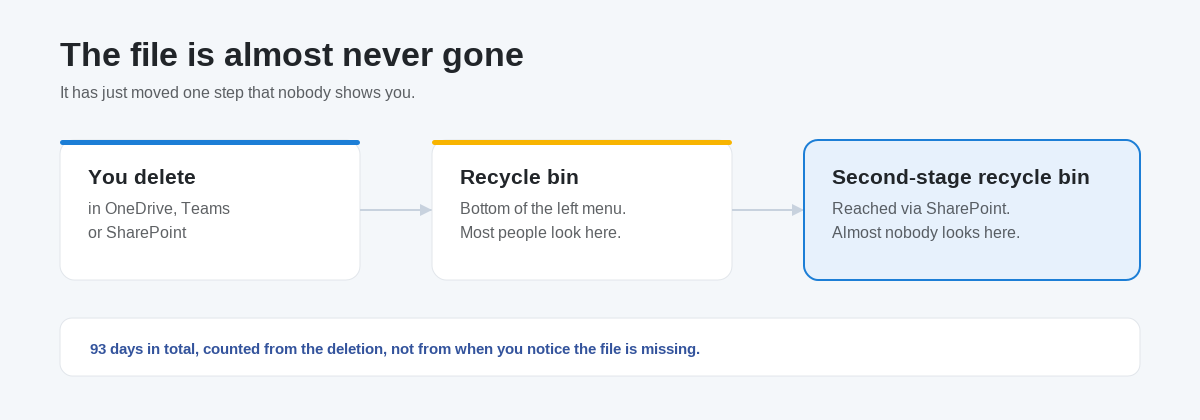
You find the first one in OneDrive or SharePoint in the browser, at the bottom of the left menu. Everything you have deleted in the last 93 days is there. Select the file, click Restore, done. It goes back to the same folder it was in, with the same name and the same sharing as before.
The other one is called the Second-stage recycle bin, and it is the one nobody knows about. When something is deleted from the first recycle bin it ends up there instead, as a last safety net. You reach it through SharePoint, at the bottom of the page in the regular recycle bin, where it says "Second-stage recycle bin". If you do not have permission, ask whoever administers your Microsoft 365.
The 93 days count from the deletion, not from when you discover the file is missing. That is why it matters to ask right away instead of thinking about it for three weeks and then calling.
Where the file ends up depends on where it was
This is the most common reason someone cannot find the file even though they looked in the recycle bin. They looked in their own.
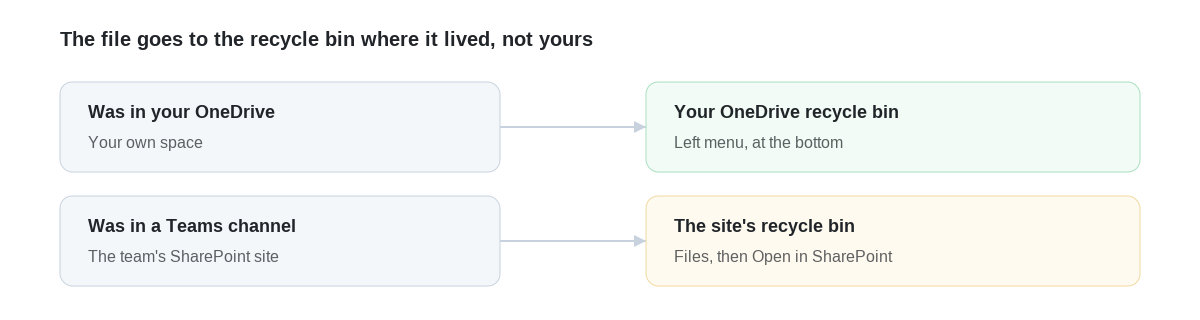
So if the file was in Teams, do not search your own OneDrive. Go to the channel, click Files, then Open in SharePoint. From there you find the right recycle bin.
That is why where the file should live is the first part of the series. If you know where the file was, you know where it ended up.
Restore a whole folder, not file by file
If someone has deleted an entire folder structure, everything can be brought back in one go, but you have to select the right thing.
The recycle bin lists every file separately, including those that were in a deleted folder. Select the folder and restore it, and the content comes along. Select only the files and they come back without the folder, loose in the root, and then you have created a new problem.
OneDrive also has a feature called Restore your OneDrive, which rolls the whole space back to a point in time you choose. It is built for bigger accidents, for example when a sync has gone wrong or when many files have been changed at once, and it shows a graph of the activity so you can see when the odd things started. SharePoint has the same thing for a document library, under the gear icon and Restore this library.
If it was not a deletion
Sometimes the file is not deleted, only moved. Someone has dragged a folder to the wrong place in File Explorer, often without noticing, and now it sits one level down in a folder nobody looks in.
Open the file in OneDrive on the web and look under Activity on the right-hand side. It says who did what and when. That sounds like surveillance, but in practice it is almost always used to establish that someone slipped with the mouse on Tuesday.
If you cannot find the file at all, search for part of the file name in the search box at the top of SharePoint instead of in a single folder. The search goes through every site you have access to, which is often more than you think.
What to do if someone deleted on purpose
It rarely happens, but when it does it is urgent and the order matters.
Start by not cleaning up anything else. If the recycle bins are emptied, what is in them can be gone for good, and if the Second-stage recycle bin fills up, the oldest items are purged automatically, even before 93 days have passed.
Then look at the file's activity log, and at the Microsoft 365 audit log if you have it available, to see what actually happened. Also block the account before you do anything else, for the same reasons we go through in When an employee leaves.
The recycle bin is not a backup
A recycle bin protects against mistakes. It does not protect against someone who deliberately deletes and then empties the recycle bin, and not against ransomware that encrypts the files where they are. Then the content is destroyed without anything ever having gone into a recycle bin.
93 days also sounds like a long time, but it is roughly one summer. A file deleted in June and missed in September can already be gone.
What actually protects against that is covered in 3-2-1 backup.
Set it up before you need it
Two things are worth fifteen minutes now instead of half a day later.
Make sure you know who has permission to the Second-stage recycle bin. If you have to ask an administrator for help in the middle of a stressful situation, it is good to know in advance who that is.
Also decide who people should contact. It sounds trivial, but the most common explanation for a file passing 93 days is that the person who lost it did not know who to ask, and so did not ask at all.
Call first
Call before you start rewriting the document.
Almost every call I get about deleted files would have taken a minute if it had come right away. They took half a day because someone had already started redoing the work. The file is still easy to find, but now it has to be merged with the new one.
Next part: how to bring back yesterday's version of a file that still exists.
Other parts in this series:
- Where should I save the file?
- How to share a file safely
- "Anyone with the link", what does it mean?
- How to restore a deleted file (this article)
- How to restore an old version
- How to see who has access to a file